Usage Guide
Select model and download model
Click Settings button to enter Settings UI, select the model search tab page, choose the model you want to use and click download. After clicking, you can see the download progress status of the model on the local model tab page.
If there is a problem accessing Huggingface, you can fill in the appropriate image address. Some models require an Access Token, and in order to download the model, you need to register and configure it on Huggingface.
If the gguf model file already exists locally, it can be directly copied to the model download directory, and the application will automatically recognize and use the gguf model file. Backend: llama.cpp may better work with gguf model files.
Modelscope is recommended to use for model download if used in China, which has better download speed and stability in China.
Default folder for downloaded models:
Windows
%USER_PROFILE%\AppData\Roaming\synvek\SynvekExplorer\data\models
Macos
/Users/$USER/Library/Application Support/com.Synvek.SynvekExplorer/models
Ubuntu
/home/$USER/.local/share/synvekexplorer
Usage
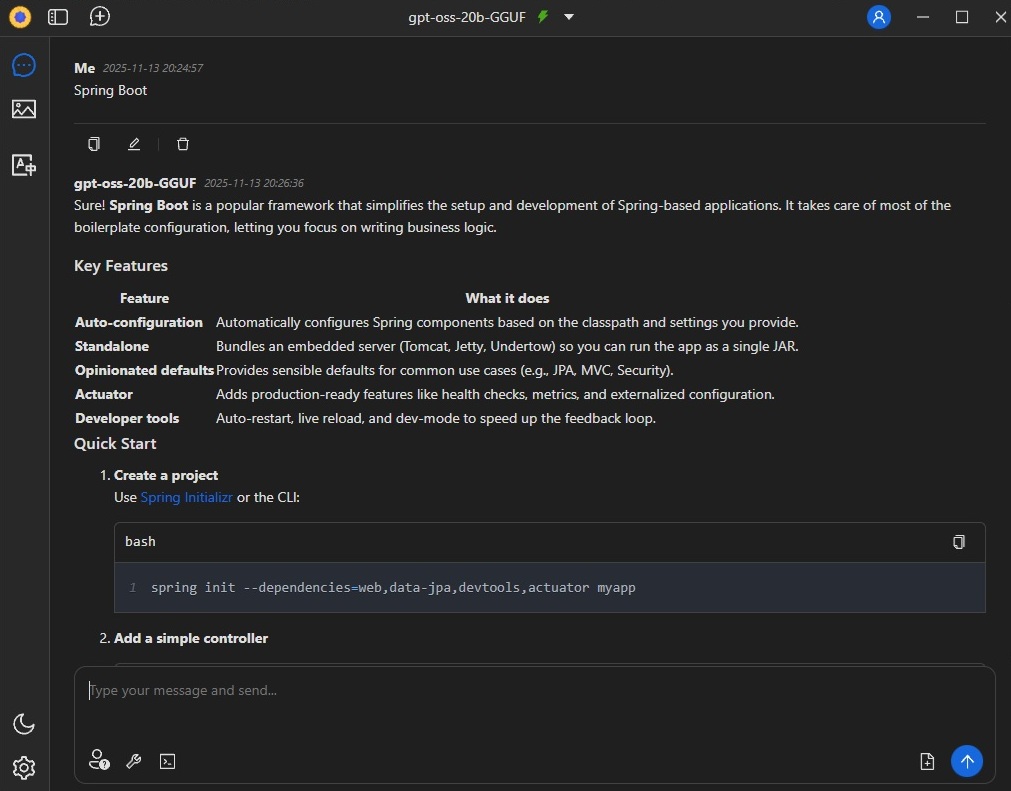
Chat completion: Taking gpt-oss-20b-gguf as an example
Go to Settings tab, select the model download gps-oss-20b-gguf model
Go to Settings tab, select model search, choose gps-oss-20b-gguf, select download, and after the download window pops up, you can directly use the default value points to confirm and download. -On the chat tab, select the local model to see the download status of the local model, and wait for the model download to complete.
Go to Chat tab, select gps-oss-20b-gguf from the drop-down selection box of the model, set the model as the default chat model, and start chat after launching the model
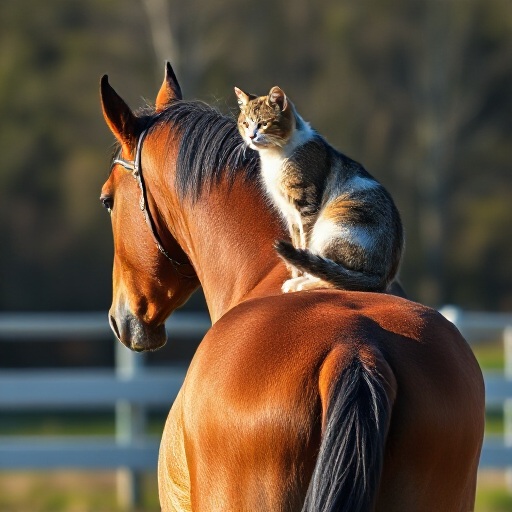
Text to image: Taking FLUX.1-schnel-gguf as an example
Go to Settings tab and select the model to download the FLUX1-schnell-gguf model
Go to Settings tab, select Model Search, choose FLUX.1-scannel-gguf, select Download, and after the download window pops up, you can directly use the default value point to confirm and download.
On Chat tab, select the local model to see the download status of the local model, and wait for the model download to complete.
Enter Chat tab, click on the drop-down selection box of the model and choose FLUX-1-schnell-gguf, set the model as the default dialogue model, and start Chat after launching the model
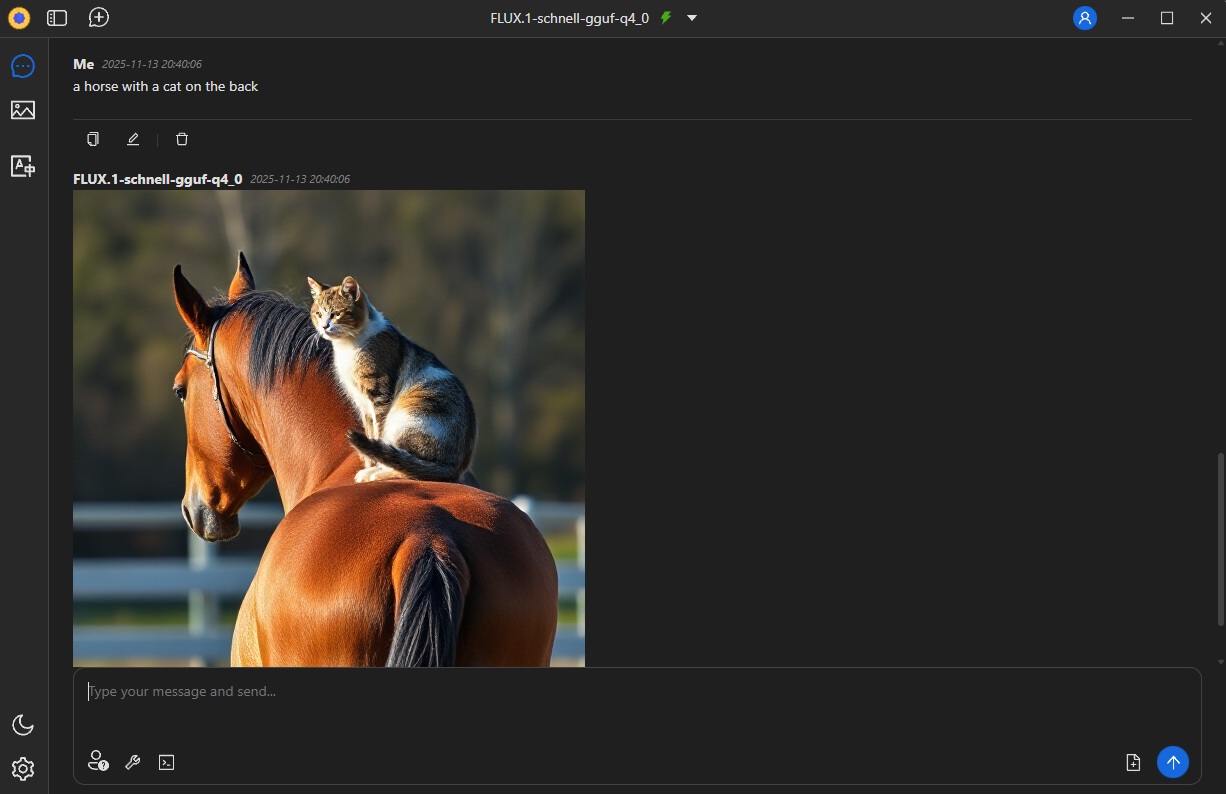
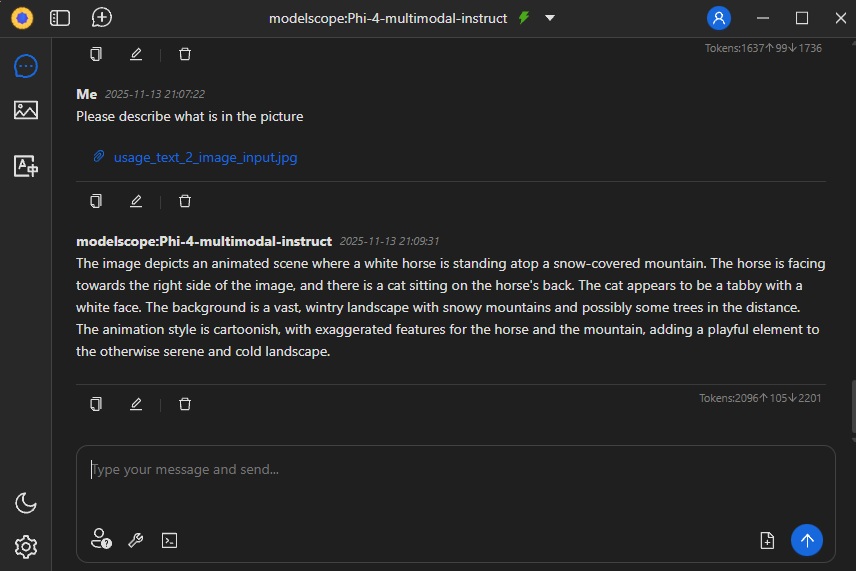
Image to text: Taking Phi-4-multimodal instruction as an example
Go to Settings tab and select the model to download the Phi-4-multimodal-instruct model
Go to Settings tab, select Model Search, choose Phi-4-multimodal instruction, select Download, and after the download window pops up, you can directly use the default value points to confirm and proceed with the download.
On the chat tab, select the local model to see the download status of the local model, and wait for the model download to complete.
Enter Chat tab, click on the drop-down selection box of the model, select Phi-4-multimodal instruction, set the model as the default dialogue model, and start Chat after launching the model
When having a conversation, first click on the attachment to add the image file you want to analyze, then enter the question and press Enter to start generating
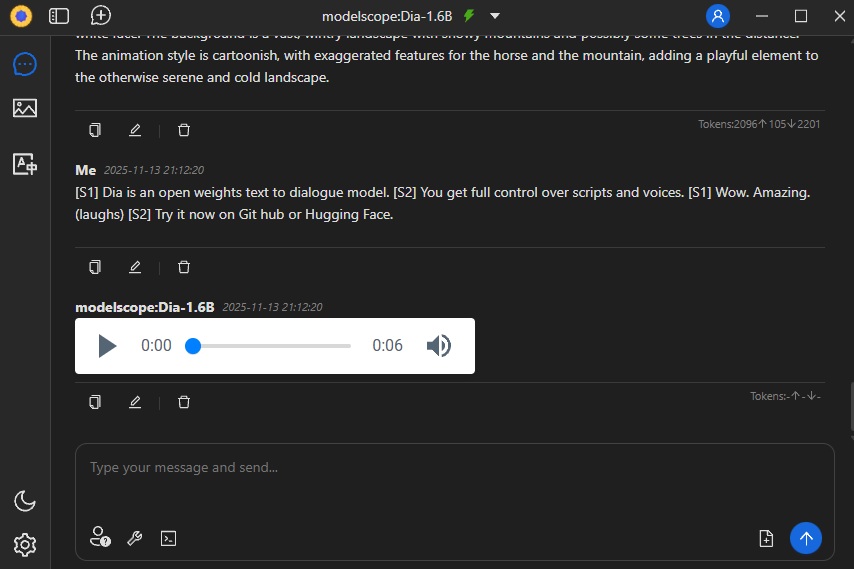
Text to speech generation: taking Dia-1.6B as an example
Go to Settings tab, select the model download Dia-1.6B model
Enter Settings tab, select model search, choose Dia-1.6B, select download, and a download window will pop up. You can directly use the default value points to confirm and download.
On the chat tab, select the local model to see the download status of the local model, and wait for the model download to complete.
Go to Chat tab, select Dia-1.6B from the drop-down menu of the model, set the model as the default dialogue model, and start Chat after launching the model.
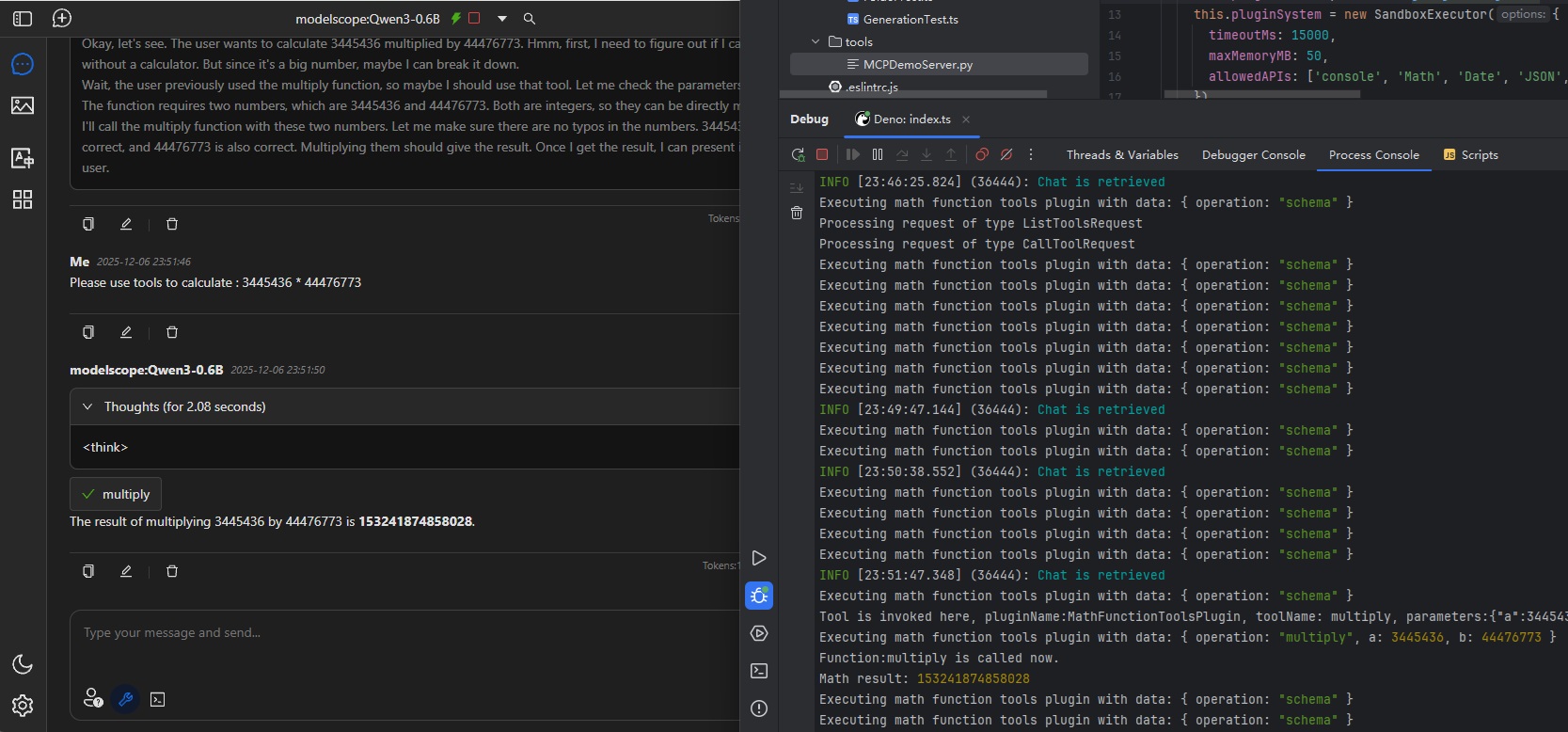
Function Call/Tool usage:
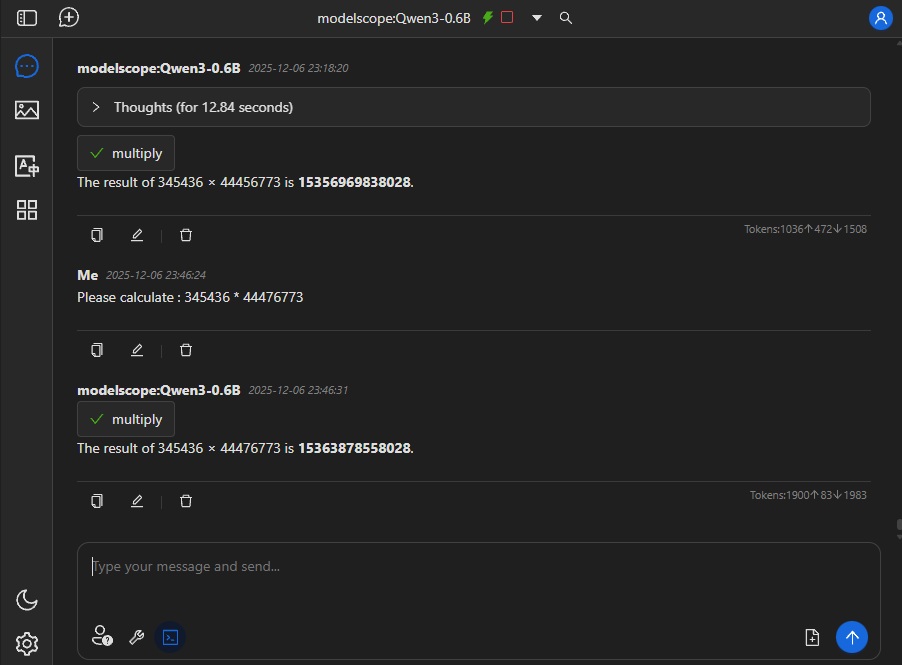
Only some models support this right now. Please check snapshot with Qwen3-0.6B and backend: default-cuda.
Configure Tools
Turn on Tools in chat
MCP usage:
Only some models support this right now. Please check snapshot with Qwen3-0.6B and backend: default-cuda
Configure MCP Servers and turn on
Turn on MCP servers in chat